LILY WIFI CONNECTION GUIDE
(Kasama na rin ang user manual)
Step 0: Mga Button ni Lily
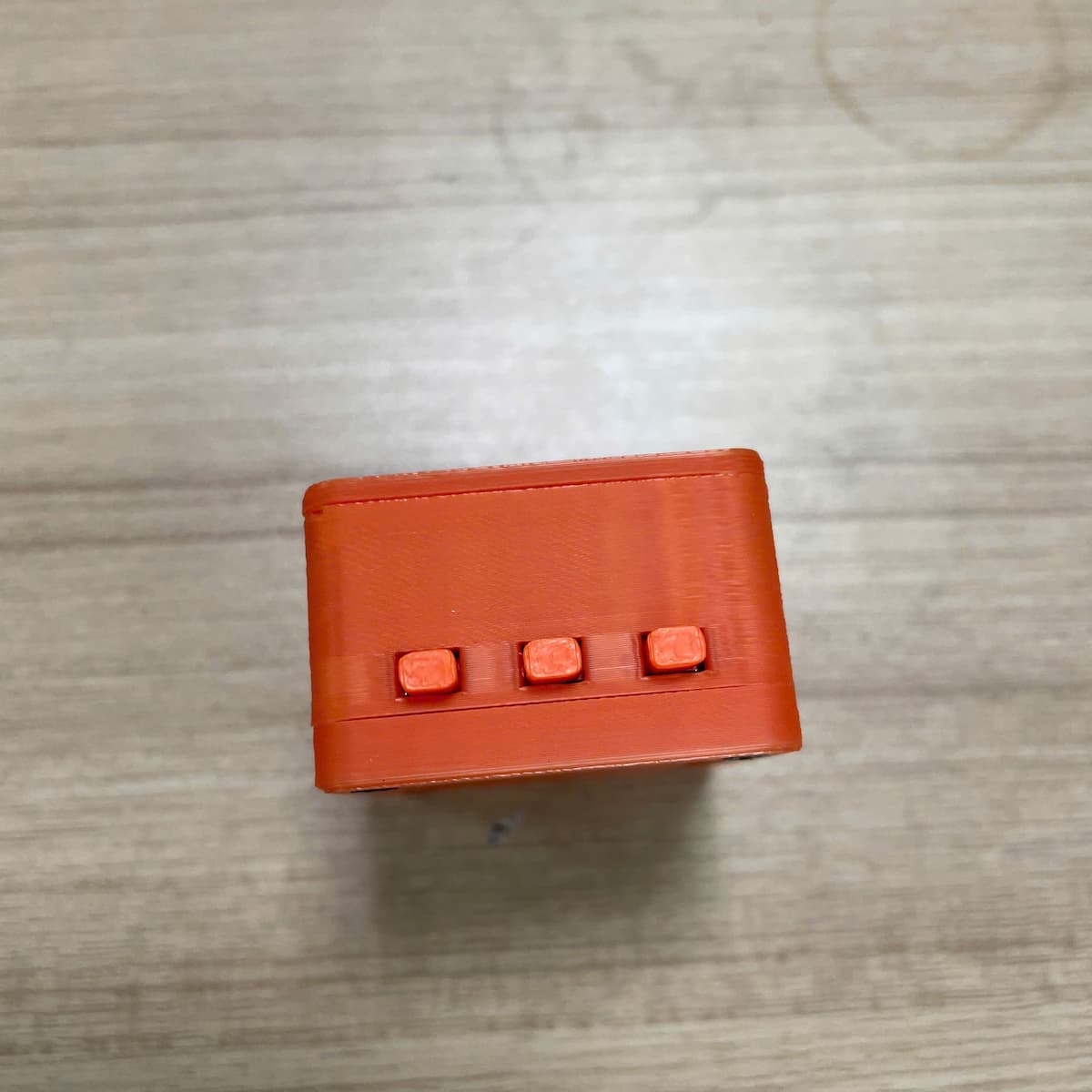
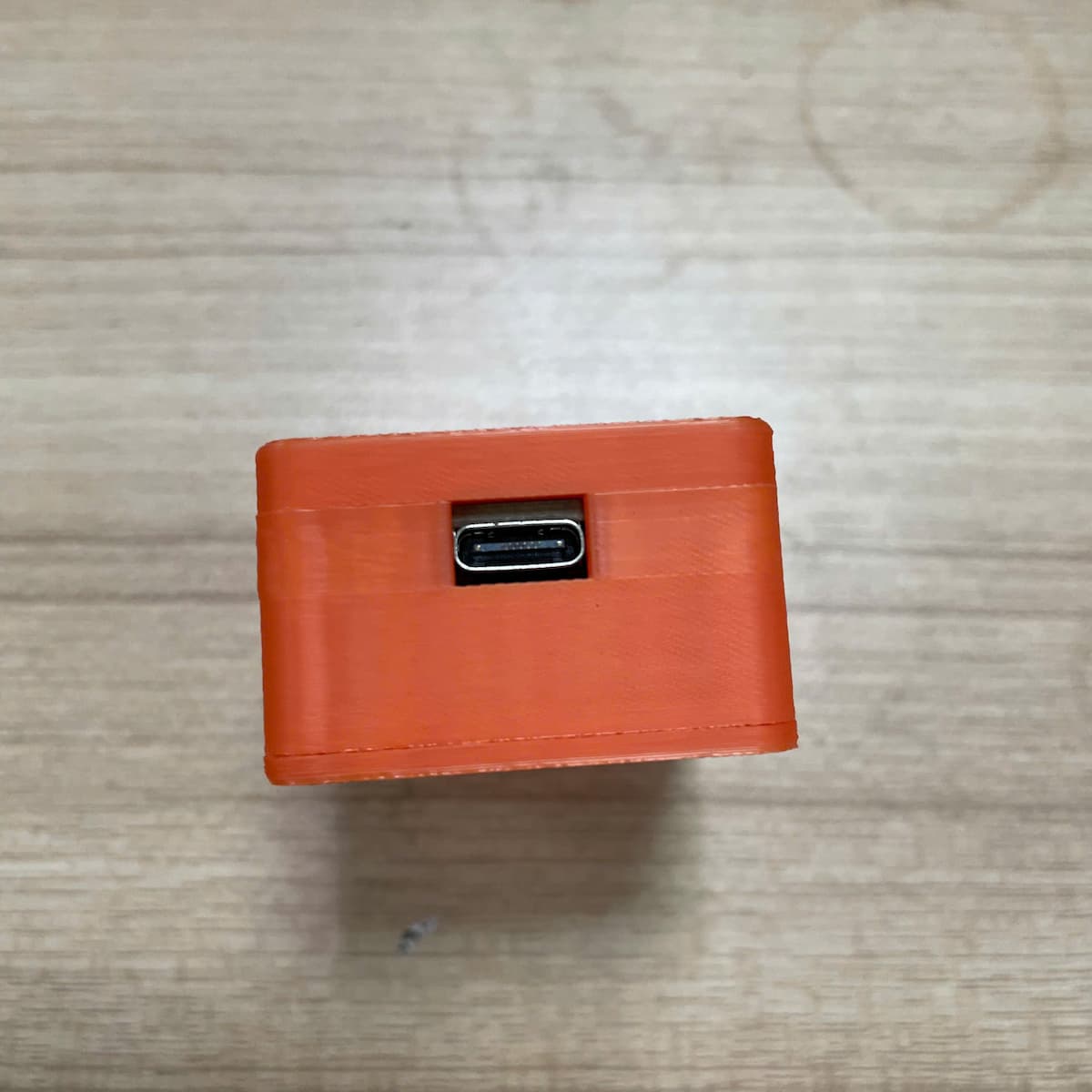
Sa kaliwa ay power button, sa taas may 3 buttons: volume down, start speaking button, volume up. Sa baba ay type-C charging port
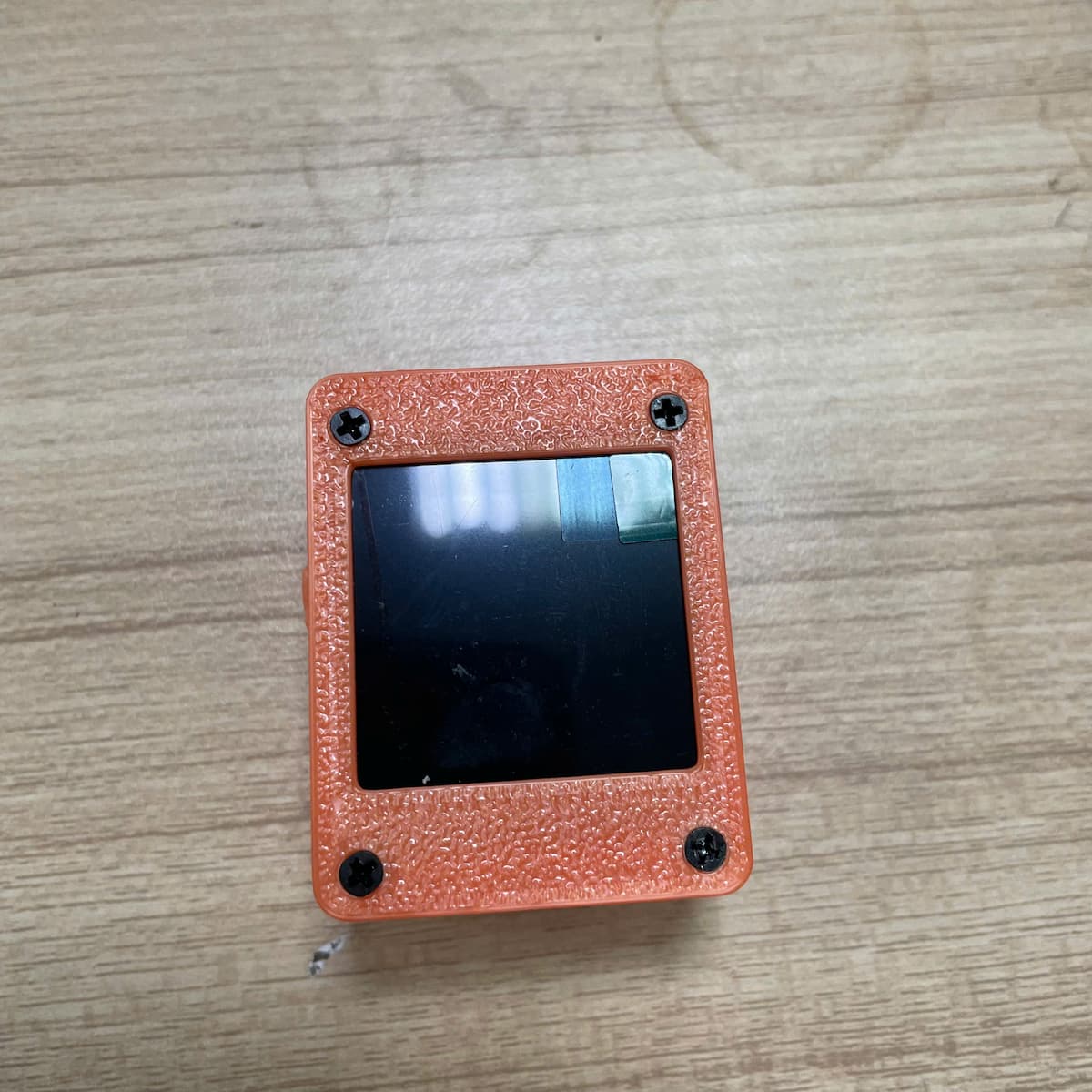
Step 1: Pag-on kay Lily
I-press ang power button once nang mahinhin para ma-on si Lily. I-hold nang matagal ang power button para ma-off si Lily.
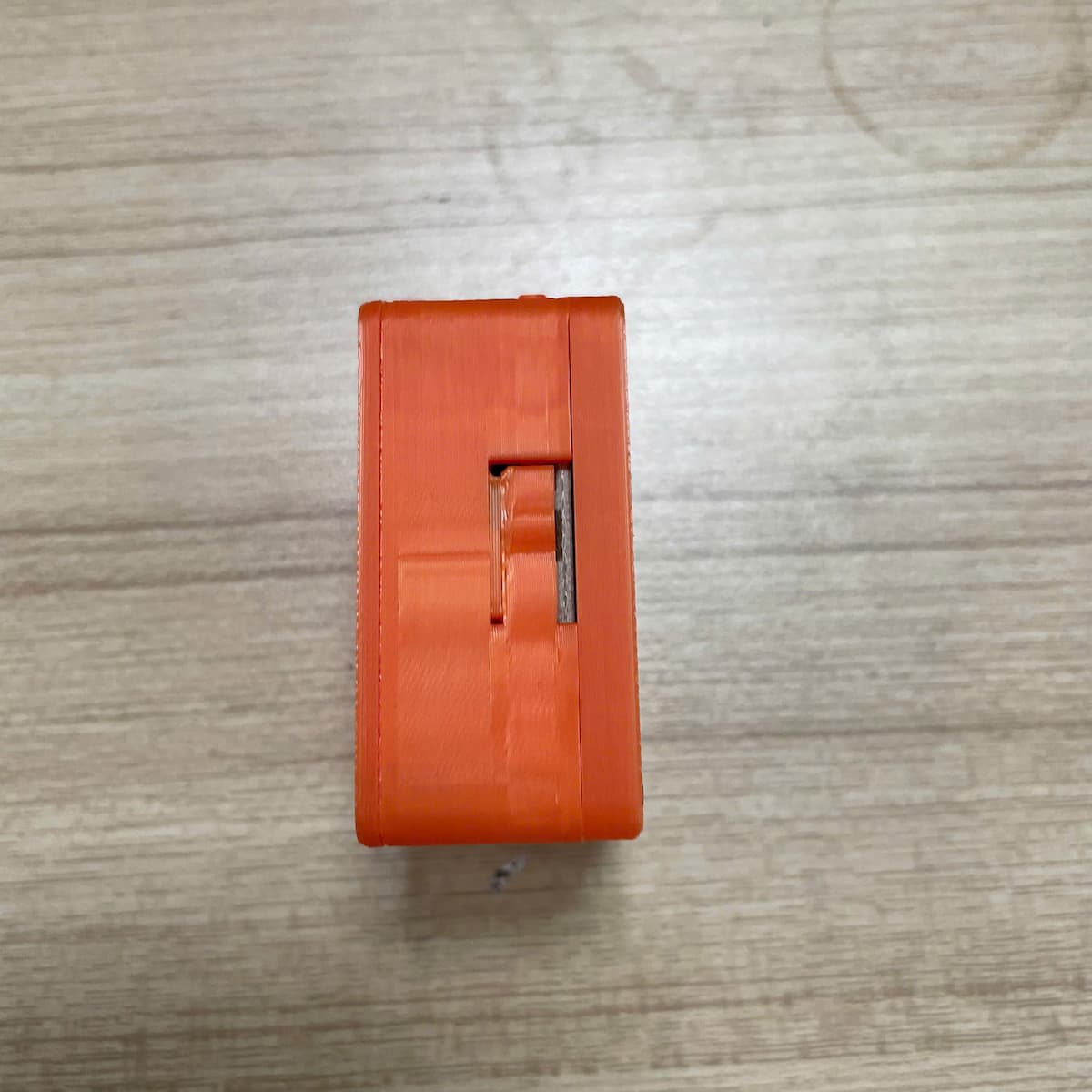
Step 2: Tungkol sa 3 top buttons
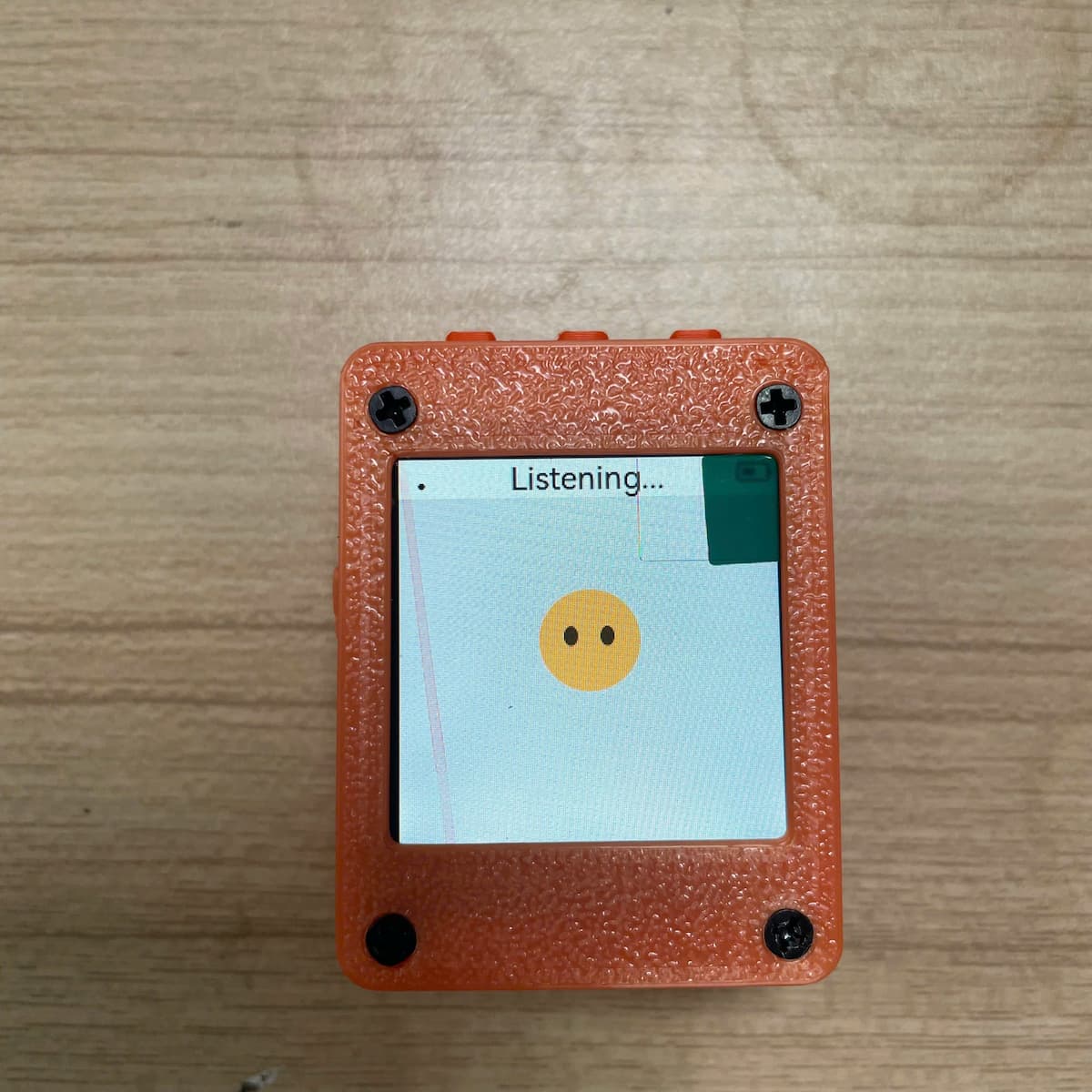
Ang left button ay volume down, right button ay volume up, middle button ay start speaking button (i-press tapos i-release, magdi-display si Lily ng listening status para marinig kayo)
Step 3: Charging Port
Ang charging port ni Lily ay type-C (tulad ng Samsung o iPhone 15 pataas na charging ports). Dapat gamitin ang phone charger para ma-charge si Lily nang mas mabilis
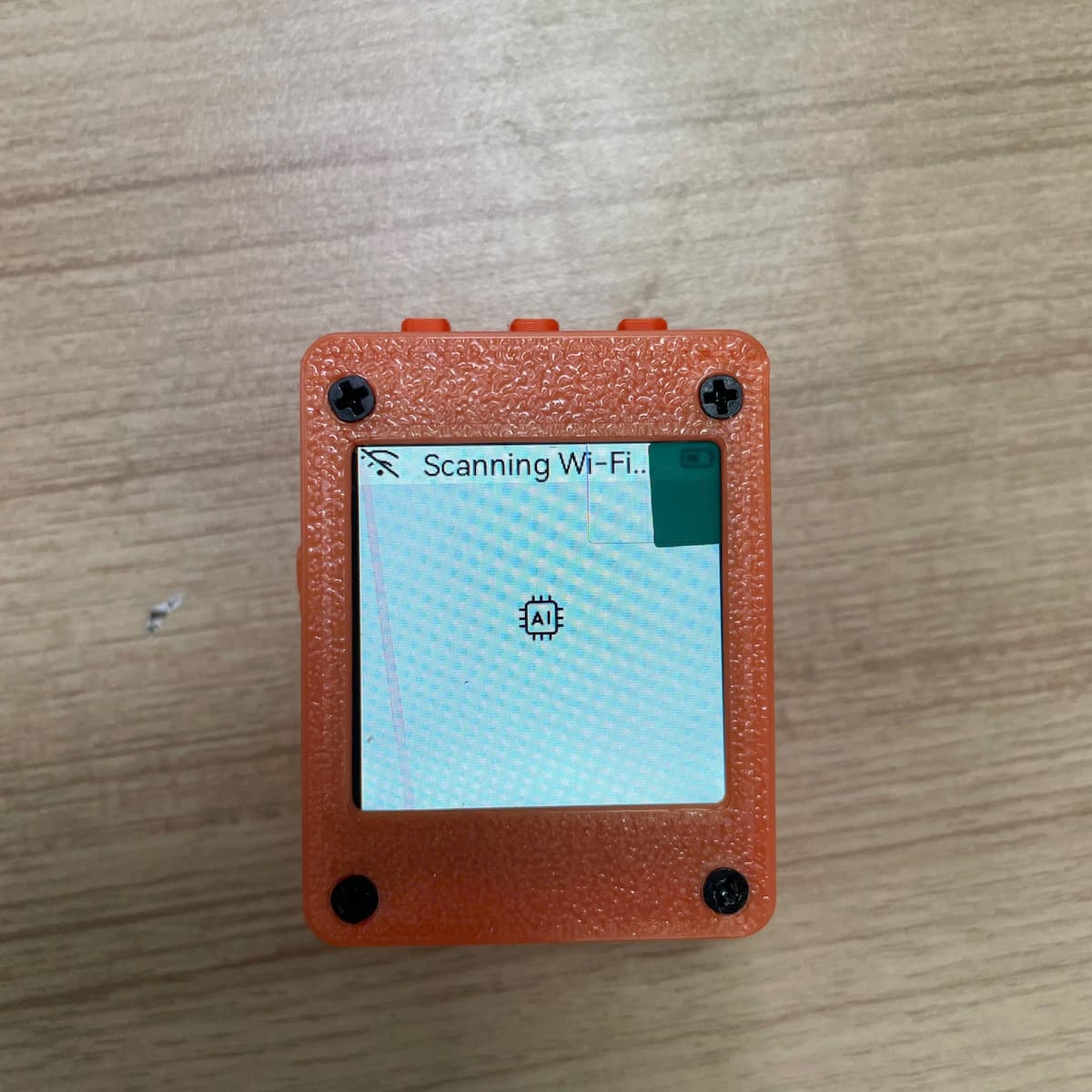
Step 4: First WiFi Scan
Pagkatapos ma-on si Lily, dahil first time, mag-s-scan si Lily ng WiFi networks. Pero dahil hindi pa na-configure, kailangan maghintay. Mag-mo-move si Lily sa WiFi connection notification step.
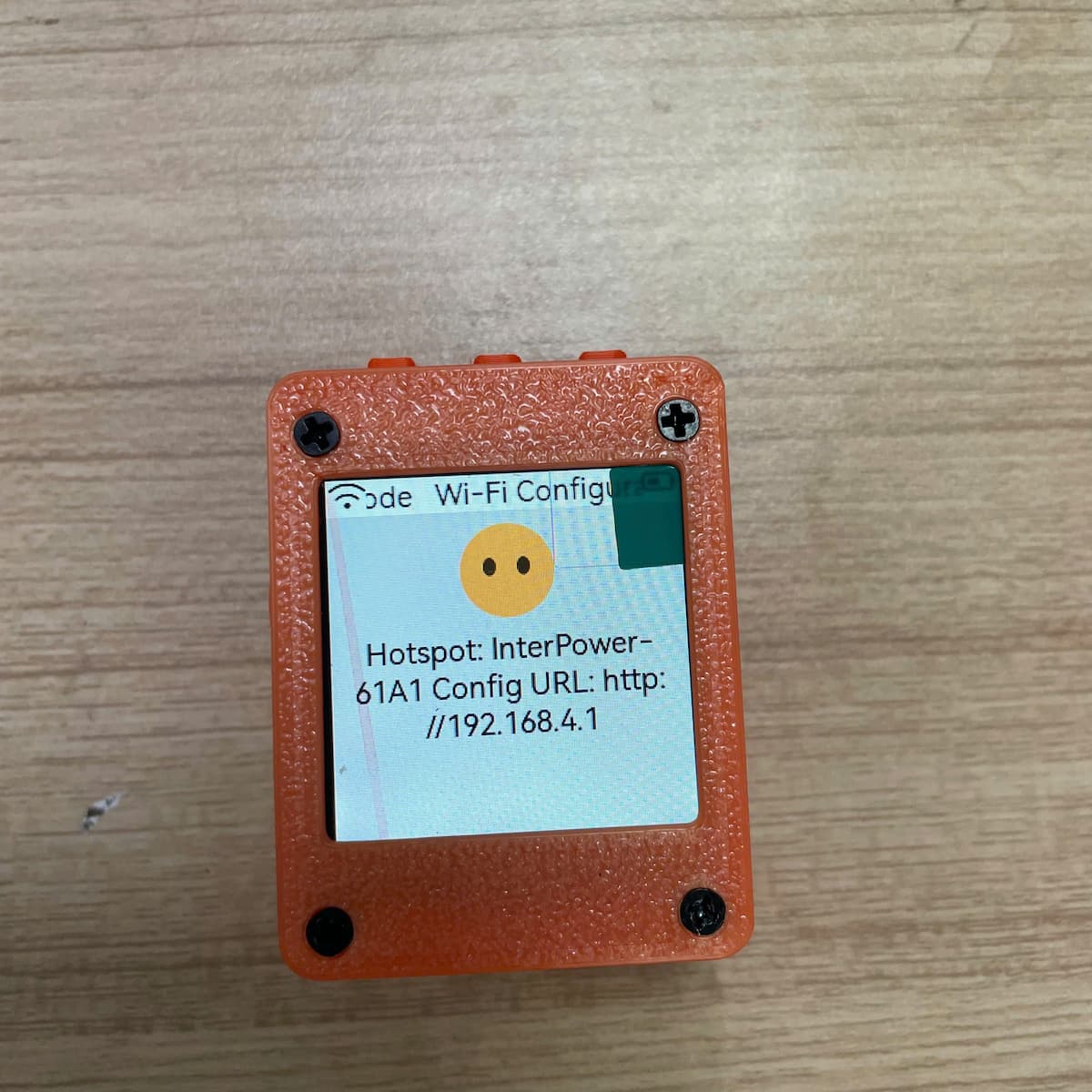
Step 5: WiFi Connection Notification
- Ang InterPower-61A1 information ay magiging network info para ma-connect ninyo ang computer o phone directly kay Lily
- Ang suffix na 61A1 sa InterPower-61A1 ay mag-va-vary per device
- Ang http://192.168.4.1 information ay address ni Lily para ma-access ninyo directly gamit ang computer/phone
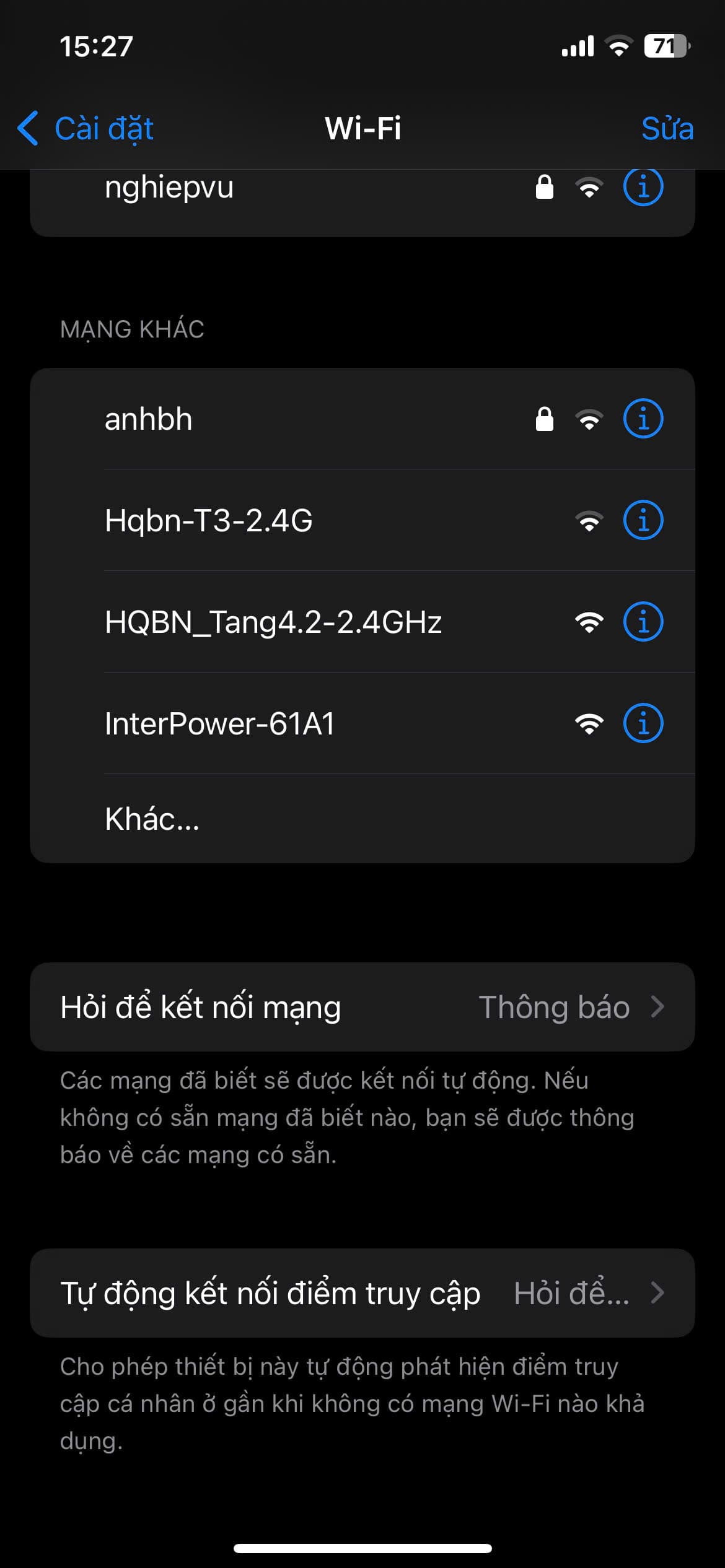
Step 6: Direct Connection kay Lily
- Gamitin ang computer o phone para ma-connect sa InterPower-61A1 network (ang suffix na 61A1 ay mag-va-vary per device). I-click ang InterPower-61A1 network
- Pagkatapos ma-connect sa InterPower-61A1 network, i-open ang browser at i-type ang address na http://192.168.4.1. O ang interface na ginagamit ninyo ay automatic na mag-o-open ng http://192.168.4.1
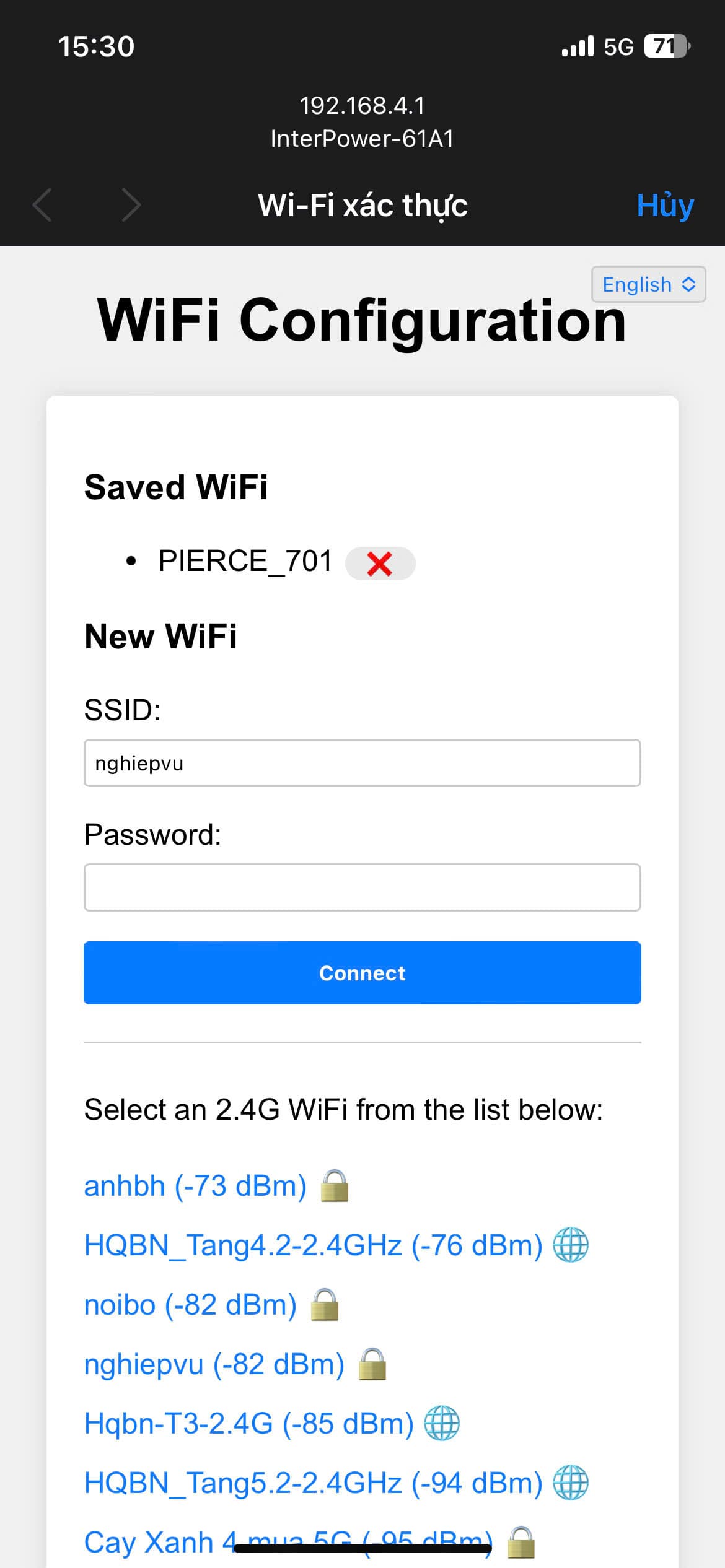
Step 7: WiFi Connection Configuration
Pagkatapos ma-access ang http://192.168.4.1 makikita ninyo ang list ng surrounding WiFi networks. I-click para piliin ang WiFi network at i-enter ang password tapos i-click ang connect button
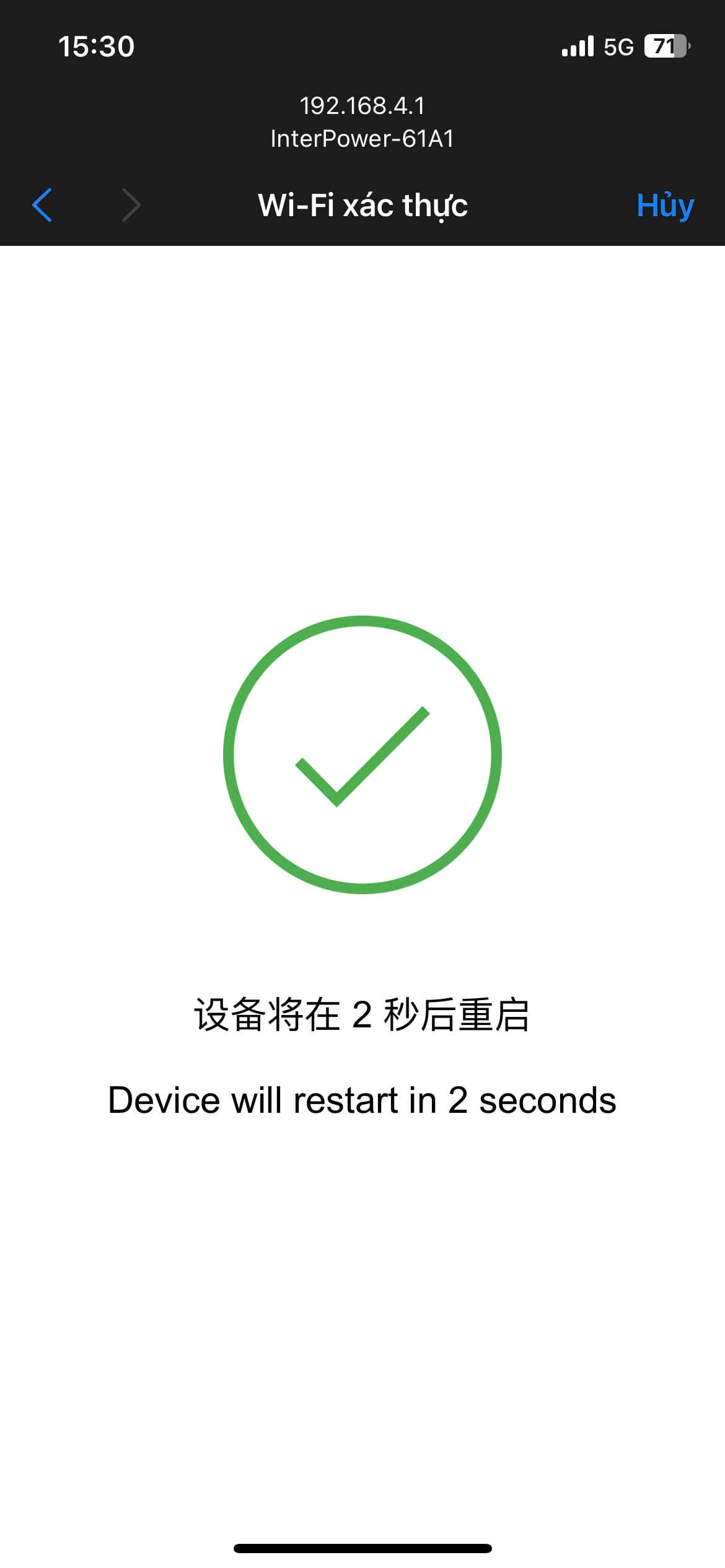
Step 8: Success Notification
Kung tama ang WiFi password, magdi-display si Lily ng success notification tulad ng nasa susunod na image
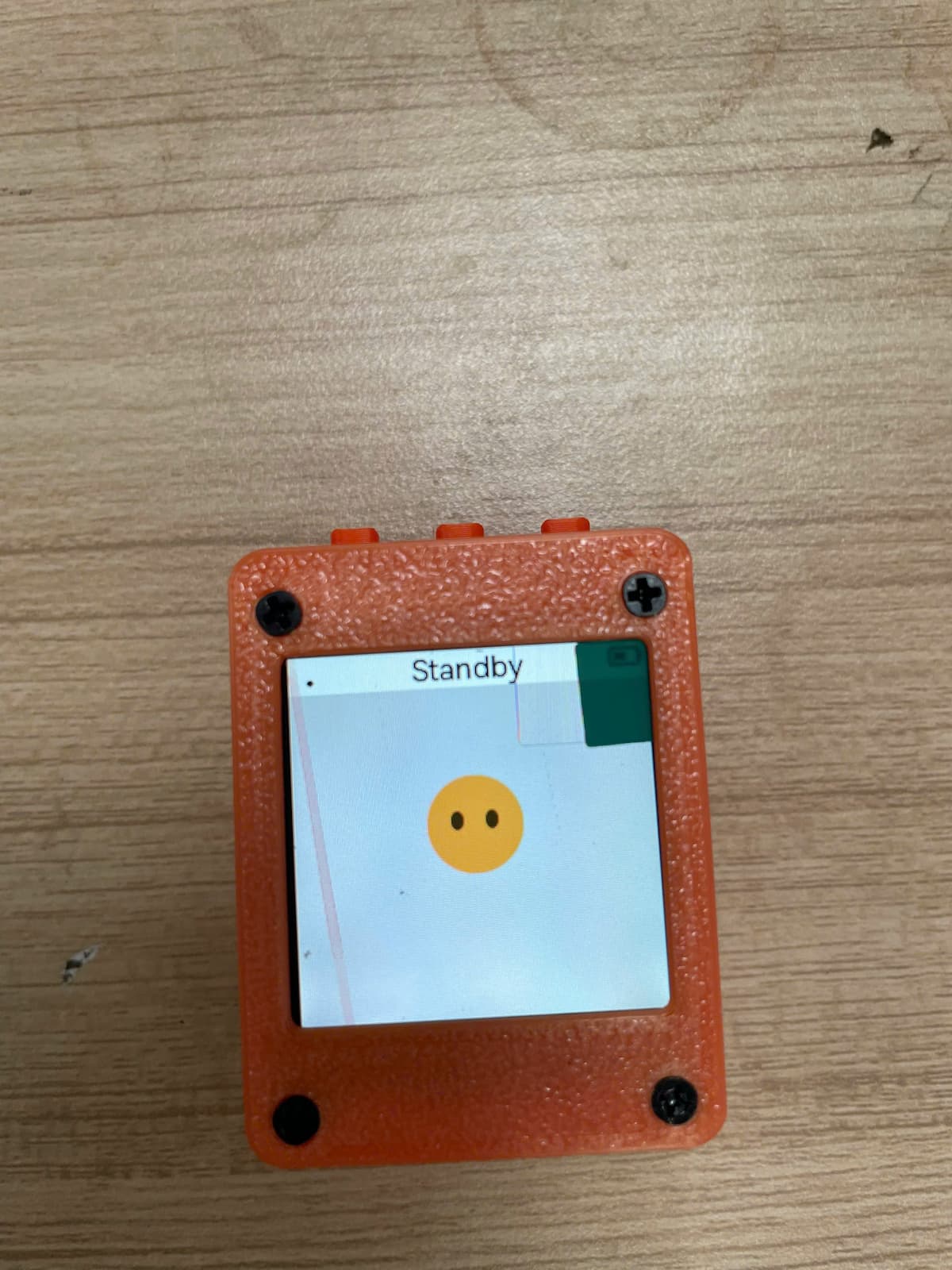
Step 9: Standby Status
Maghintay ng konti at magdi-display si Lily ng Standby status tulad ng nasa image, ibig sabihin ready na gamitin.
Step 10: Listening Status
I-press ang middle button sa taas ni Lily at magdi-display ng Listening status para marinig kayo.
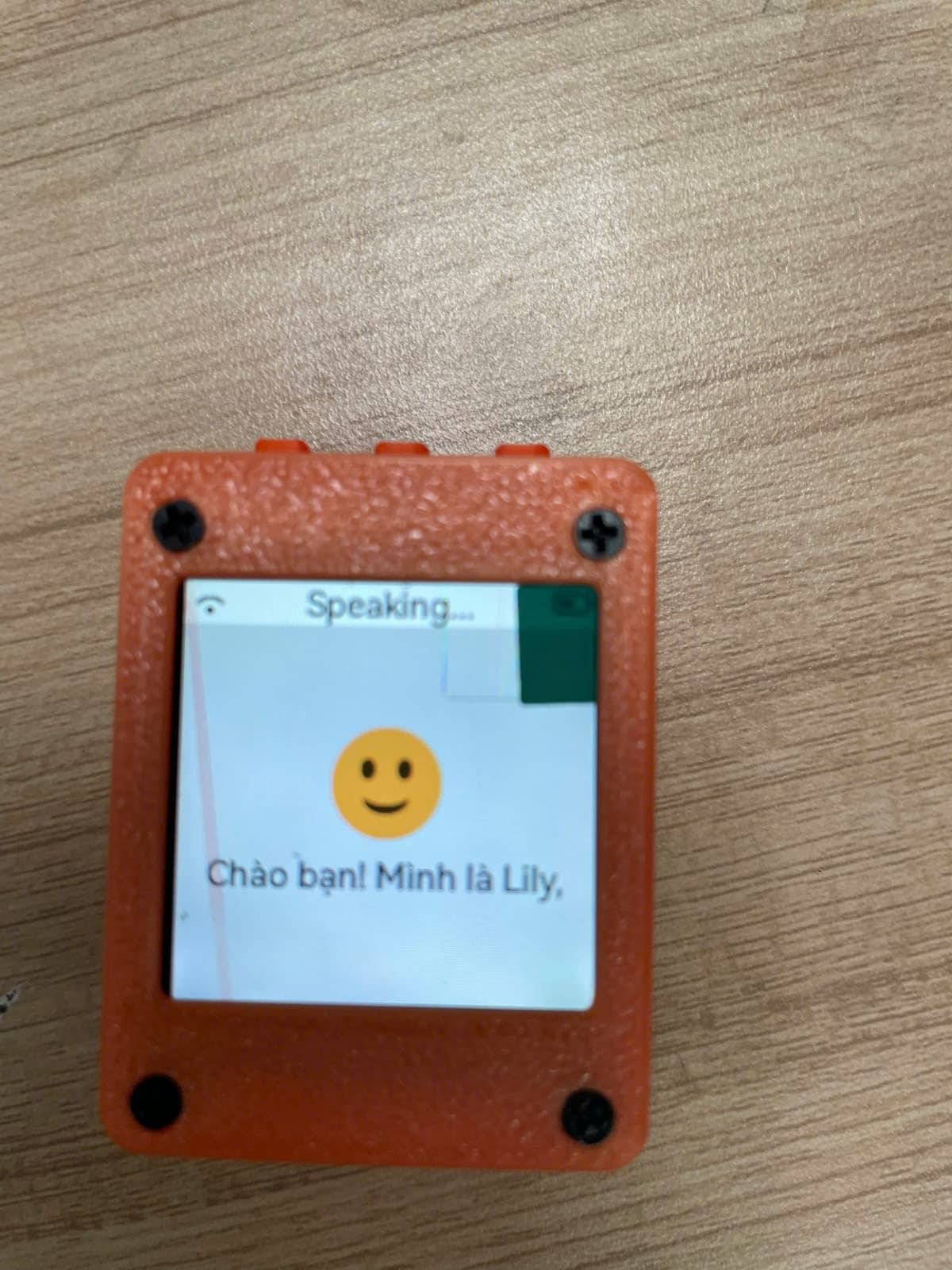
Step 11: Speaking Status
Kapag nagsasalita si Lily, magdi-display ng Speaking status tulad ng nasa image
guide2.title
guide2.subtitle
Technical support contact information:
- Hotline: +63 88 838 6826
- Zalo: +63 88 838 6826
- Email: [email protected]